



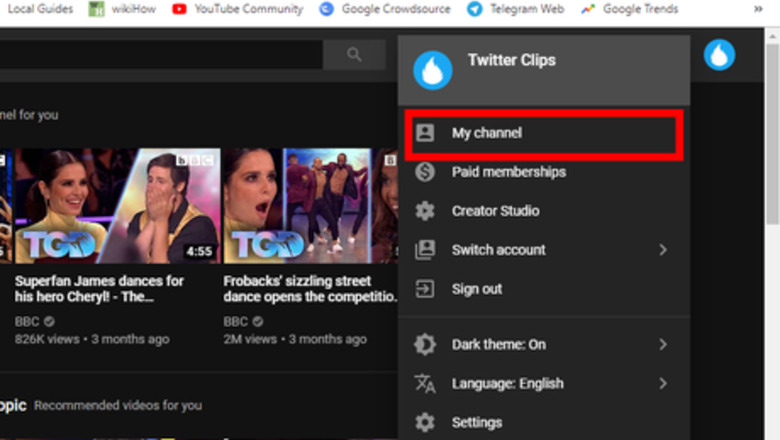

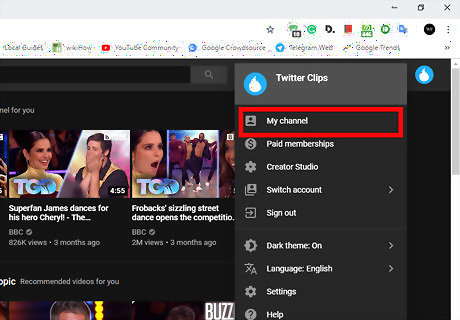
Go to your YouTube channel. Open www.youtube.com in Google Chrome and sign in with your account. Then, click on your profile picture, at top-right corner of the app and select My Channel from the drop-down menu.
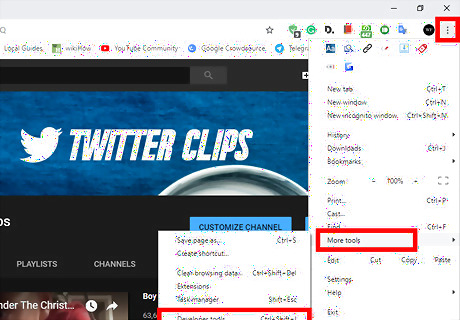
Open “Developer tools”. In Chrome, click on the ⋮ > More tools> Developer tools, or press Ctrl + ⇧ Shift+ I.
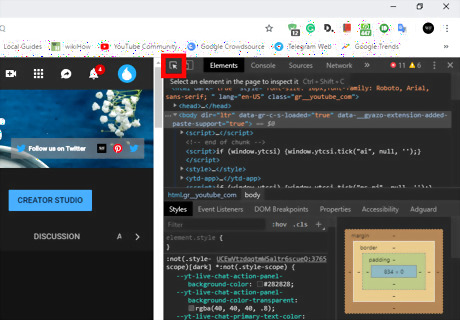
Select the “Element Picker” Tool. Click on the arrow mark icon from the top-left corner of Developer tools box.
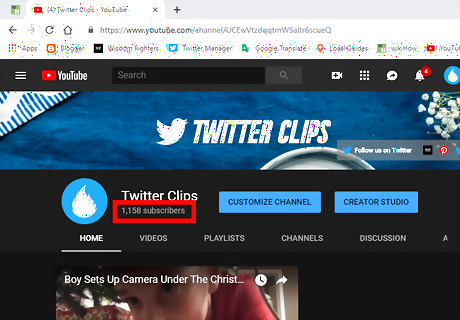
Select the subscriber count. Click on the subscriber count with that tool. Now you can see the elements on the Developer tool that you want to edit.
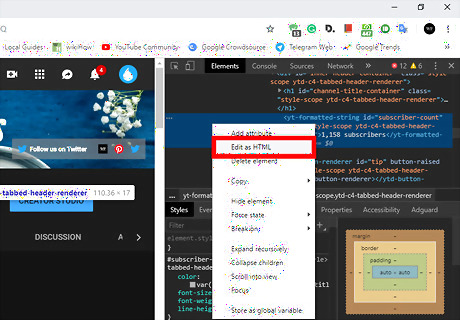
Edit the HTML elements. Right click on the highlighted elements and select Edit as HTML from the context menu.
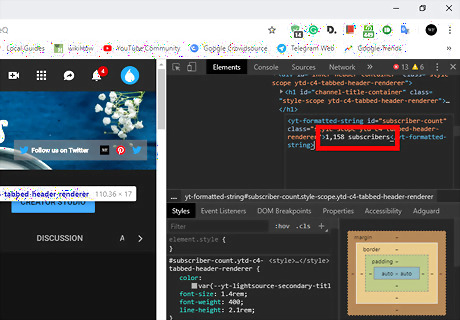
Change the numbers. You can see your original subscriber count in white letters. Change it with your desired numbers.
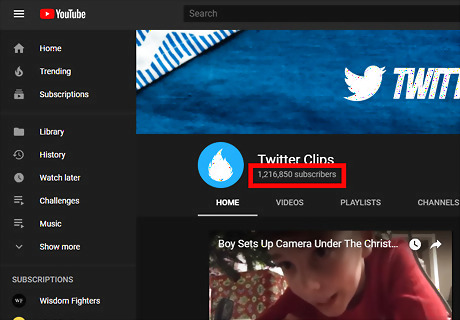
Close the “Developer tools”. Click on the X icon, at the top-right corner of the Developer tools to close it. Now, take a screenshot to save it because the changes aren't permanent. That's it!










Comments
0 comment