




Linking Spotify with Facebook
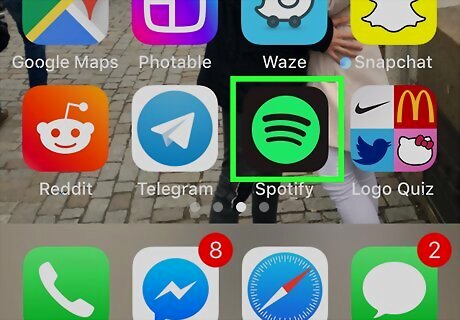
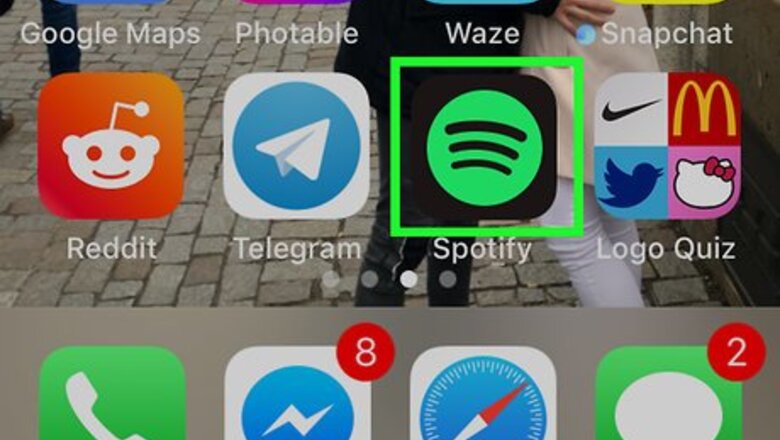
Open Spotify on your iPhone or iPad. It’s the green icon with three black curved lines inside. If your Spotify account is already connected to Facebook, skip to Changing your Facebook Profile Photo.

Tap Your Library. It’s at the bottom-right corner of Spotify.
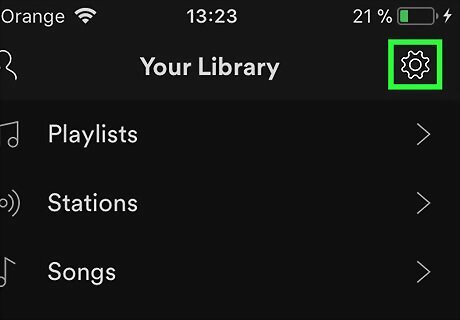
Tap the gear icon. It’s at the top-right corner of the screen.
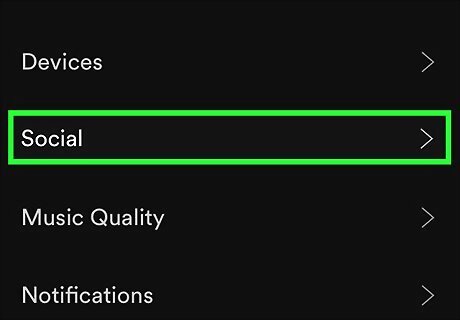
Tap Social.

Scroll down and tap Connect to Facebook…. It’s under the “Facebook” header. If your account is already connected to Facebook, you’ll see the option to disconnect instead.
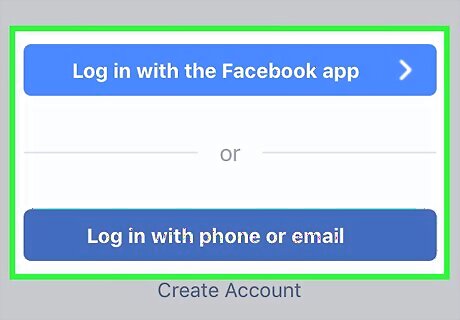
Select how you will sign in to Facebook. If you have the Facebook app on your iPhone or iPad, tap Log in with the Facebook app. If not, tap Log in with phone or email to access a sign-in screen in your browser.
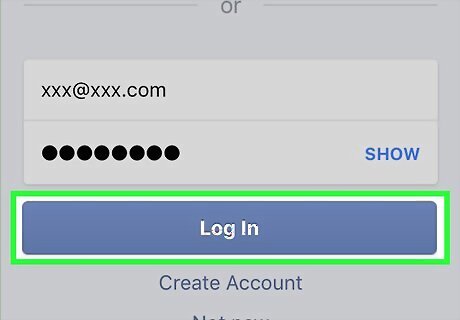
Enter your Facebook login information and tap Log In.
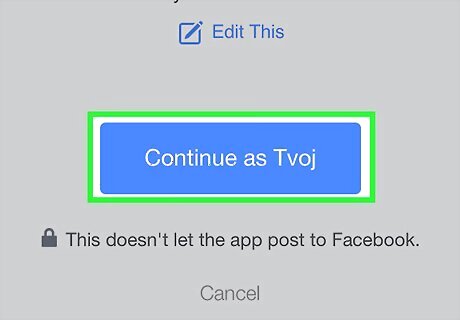
Tap Continue as
Changing your Facebook Profile Photo
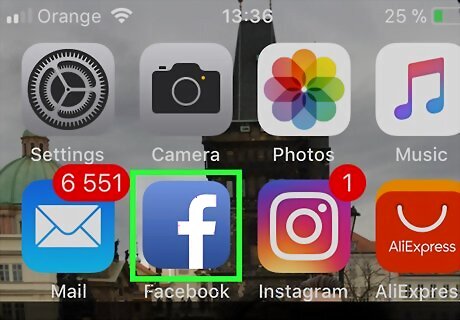
Open Facebook on your iPhone or iPad. It’s the blue icon with a white “f” typically located on the home screen.
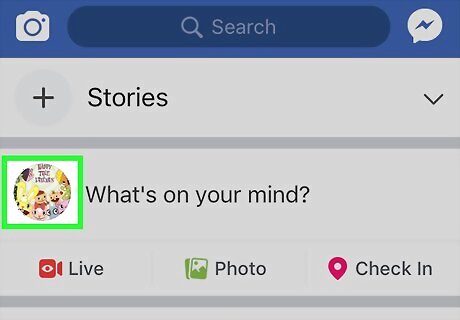
Tap your profile photo. It’s next to the “What’s on your mind?” box at the top of Facebook.
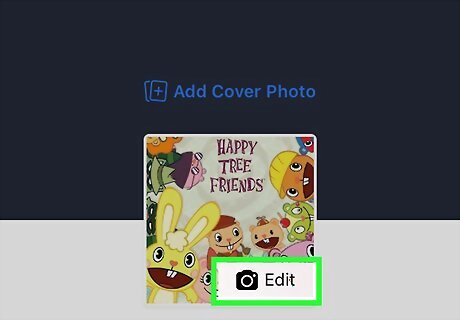
Tap Edit on your profile photo. It’s at the top of the screen.
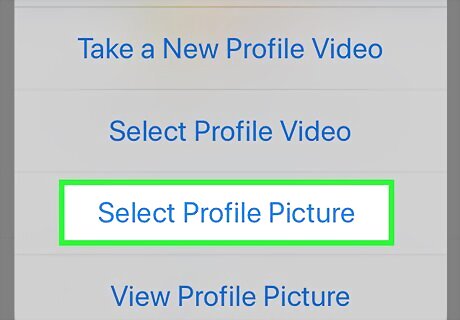
Tap Select Profile Photo.
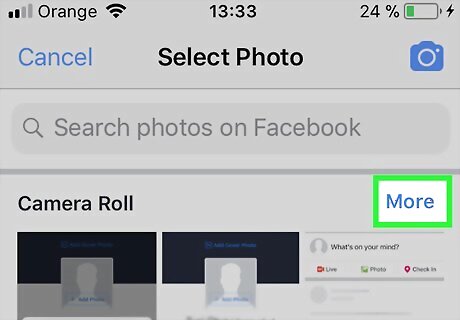
Tap Camera Roll. This opens your iPhone or iPad’s photo gallery.
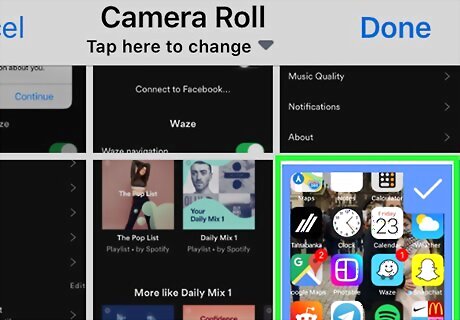
Tap the photo you want to use. This photo will be used as both your Facebook and Spotify profile photos.
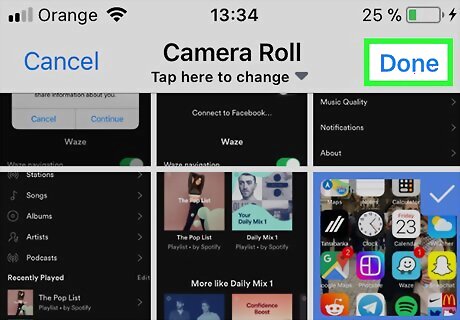
Tap Done. It’s at the top-right corner of the screen.
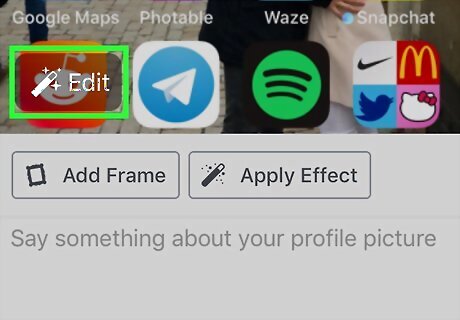
Edit the photo. This is optional, but you can use Facebook’s tools to add frames or crop the photo.
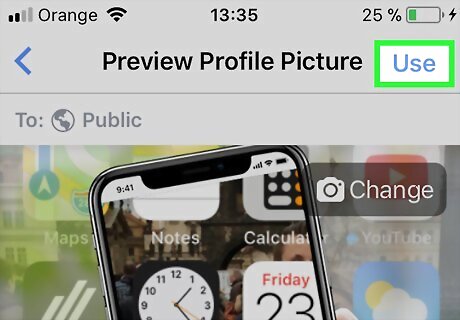
Tap Use. It’s at the top-right corner of the screen. Your Facebook profile photo will update immediately, though it may take Spotify a few days to sync the new photo.






Comments
0 comment