



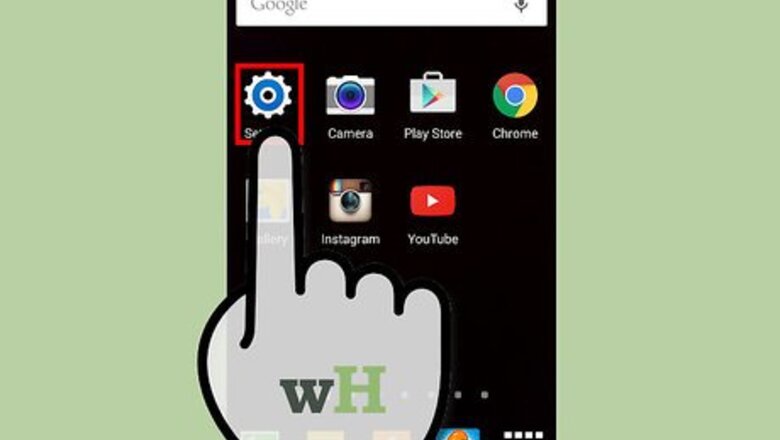

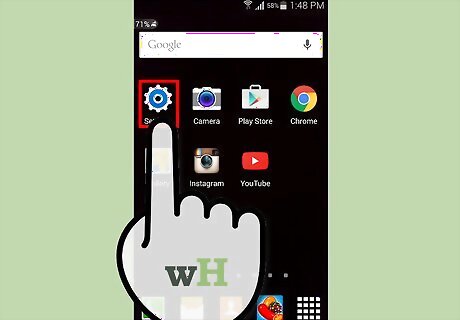
Tap on “Settings” from the Home screen of your Samsung Galaxy S3. On some devices, you may need to tap “Menu” or “Apps” to access Settings.
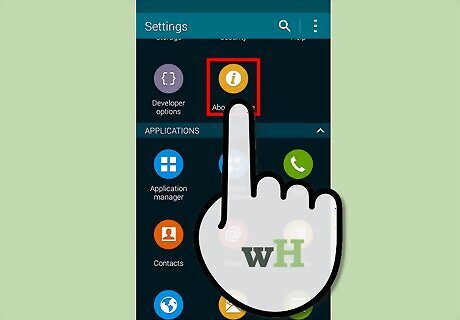
Tap on “More” at the top of the Settings menu.
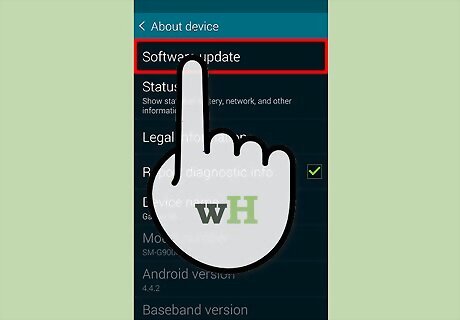
Tap on the option labeled “Software update” or “System update.” If either of these options are not displayed, tap on “About phone” to access these options.
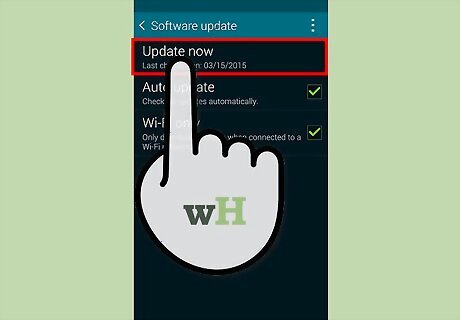
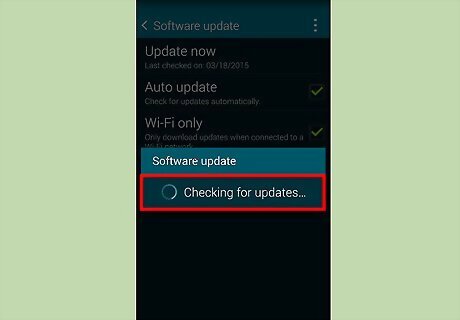
Tap on “Check for updates” or “Update Samsung Software.” Your phone will connect with Samsung’s servers to check for the latest Android updates.
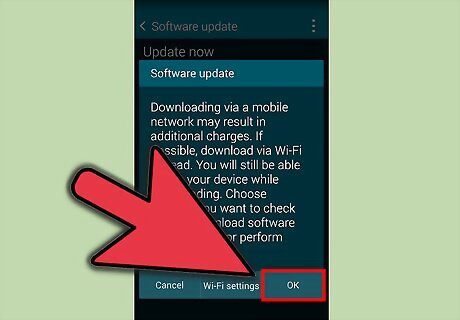
Tap on “Continue” when prompted to update your software. You phone will begin downloading the software update, which may take up to several minutes to complete.
Tap on “Restart Device” when the software update is complete. Your phone will reboot and apply any remaining updates.
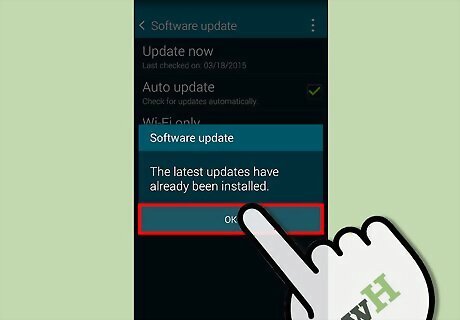
Tap on “Done” upon receiving the confirmation message. Your Samsung Galaxy S3 will now be updated, and is ready for use.







Comments
0 comment